How to Check if Your Phone Supports 5G — A Complete Guide for Apple iPhone and Android Users

As Pakistan accelerates its transition to next-generation connectivity, a growing number of users are seeking clarity on a key issue: whether their smartphones are 5G-compatible and how to activate the feature. Currently, 5G services are in early stages and available only in major cities including Islamabad, Karachi, Lahore, Rawalpindi, and Faisalabad. Here is a comprehensive, step-by-step guide to help you verify compatibility and enable 5G on your device.
Step 1: Check If Your Phone Supports 5G
📱 For iPhone Users
All recent iPhones from iPhone 12 and newer (including 13, 14, 15 series) support 5G.
How to check:
- Go to Settings → General → About
- Look for your Model Name
- If it’s iPhone 12 or later → your device supports 5G
🤖 For Android Users
Most newer Android phones support 5G, especially from brands like Samsung, Xiaomi, Oppo, and Vivo.
How to check:
- Go to Settings → About Phone
- Check Model Number
- Google your model + “5G support”
OR
- Go to Settings → Mobile Network → Preferred Network Type
- If you see 5G/LTE/3G/2G → your device supports 5G
Step 2: Check If 5G Is Available on Your SIM
Even if your phone supports 5G, your SIM and network must also support it.
- Make sure your SIM is 5G-enabled
- Contact your operator or check via app/helpline
- Ensure you are in a 5G coverage area
Step 3: Enable 5G on Your Phone
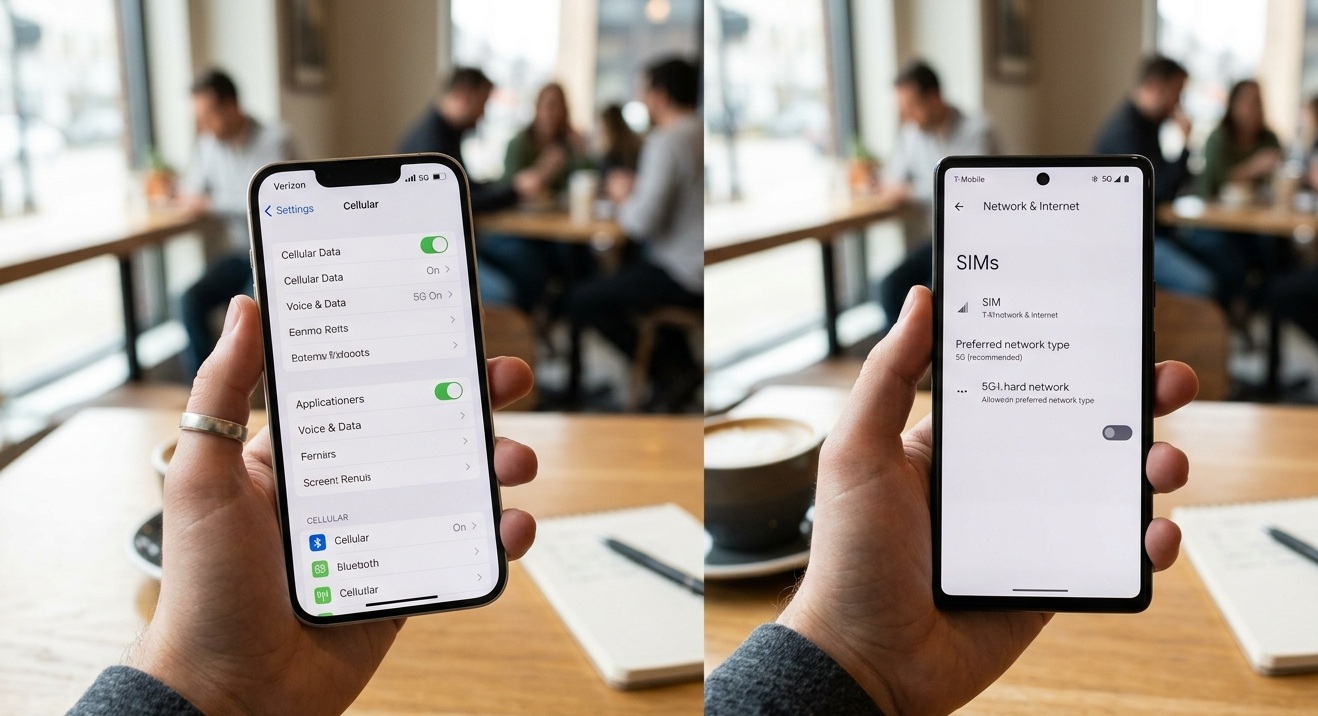
📱 On iPhone
- Go to Settings
- Tap Cellular
- Tap Cellular Data Options
- Tap Voice & Data
- Select:
- 5G Auto (recommended)
- OR 5G On (forces 5G)
👉 If you don’t see 5G options, your carrier settings may need an update.
🤖 On Android
Steps may vary slightly by brand:
- Go to Settings
- Tap Connections / Network & Internet
- Tap Mobile Network
- Tap Preferred Network Type
- Select:
- 5G/4G/3G/2G (Auto)
Step 4: Switching from 4G to 5G
If your phone is currently on 4G:
- Follow the steps above to change Preferred Network Type to 5G
- Restart your phone after changing settings
- Turn Airplane Mode ON/OFF once to refresh signal
Step 5: Why 5G Might Not Be Working
Even after enabling, 5G may not appear due to:
- ❌ No 5G coverage in your area
- ❌ SIM not upgraded
- ❌ Software update missing
- ❌ Carrier hasn’t enabled 5G yet for your device
Major brands like Samsung and Apple sometimes release region-specific 5G updates, so users may need to wait for official patches.
Step 6: Update Your Phone (Important)
Always update your device:
- iPhone: Settings → General → Software Update
- Android: Settings → Software Update
Updates often enable 5G compatibility in new regions.